Every knowledge management tool has a Confluence migration feature. But the migration never really ends there.
The document counts may match, but that says little about whether access, links, embeds, and permissions survived or whether the same page remains useful in the new tool.
An 'import finished' dialog only confirms the transfer. You still need to validate the content, establish what people can trust, and move daily work to the new tool.
This guide covers both parts, from the technical problems that arise to the work of moving the organisation onto the new platform.
Key takeaways
- Start by defining why you are migrating and what must improve when it is done.
- Decide what moves, what stays archived, and what gets retired. Then choose whether the company moves at once or team by team.
- Test difficult and critical pages before the full import. Check formatting, links, attachments, access, and search, then reconcile anything edited after the test.
- The migration is complete when people can trust the new workspace and daily work no longer depends on Confluence.
Define which Confluence migration you are planning
'Confluence migration' can mean moving to Cloud, consolidating instances, or leaving Atlassian. Let's look at what each change means on-ground and how it changes your migration efforts.
| Route | What changes |
|---|---|
| Data Center to Confluence Cloud | Where your data is hosted. Atlassian's own tooling handles most of it. |
| Between Confluence instances | Which workspace holds what, usually after an acquisition or consolidation. |
| Leaving Confluence for another product | The data model, the tool, and how people work. |
Moving to Confluence Cloud or switching instances
Atlassian has extremely detailed documentation and great support to assist you through the technical migration.
Moreover, the migration doesn't call for any changes in your team's behaviour or adoption, so it should be relatively straightforward and easily achievable in 2-3 weeks.
Moving out of Confluence
If you are leaving Confluence for another tool, we'd like to ask you something:
Why are you moving out of Confluence? What are you tangibly hoping to accomplish with a migration?
The happiest migrations we support begin with a clear pain and a clear goal. If you have a directional feeling but can't quite pin it down, here's some reasons we hear most often, and a simple way to define success for each:
| Common reason for leaving | What your migration should achieve |
|---|---|
| Your Confluence renewal is coming up | The content people need every day is moved and working before the renewal date. Less important content can follow later. |
| You want to use AI tools on your knowledge base | Only current, owned documents move. AI tools answer from what they can read, so outdated content in the new tool hurts more than it helps. |
| You inherited a Confluence workspace | You audit it for accuracy and only migrate the still-useful and accurate information. |
| Cost or packaging changed | The new tool covers the Confluence features your team uses every day, at the new price. |
| Only engineering uses Confluence | Teams outside engineering write in the new tool. Their onboarding gets the same attention as the data transfer. |
| You are merging several workspaces | Each topic has one owning team before the content moves. This stops duplicates and conflicting versions from moving with you. |
Once you know what success looks like, share it with the people who will judge it and get their agreement.
Decide what moves, what gets archived, and what gets retired
Customers often do not know what their Confluence contains or what is worth keeping. Ask each content owner to sort their area into three groups.
- Move → This criteria encompasses documents people use today. These become active knowledge in the new tool.
- Archive → These are documents nobody uses but the company may still need, such as old project records or policies with a retention rule. Keep these findable but separate from active content.
- Retire → These are drafts, duplicates, and outdated pages. Do not move these, since moving them might confuse your team during navigation in your new knowledge base.
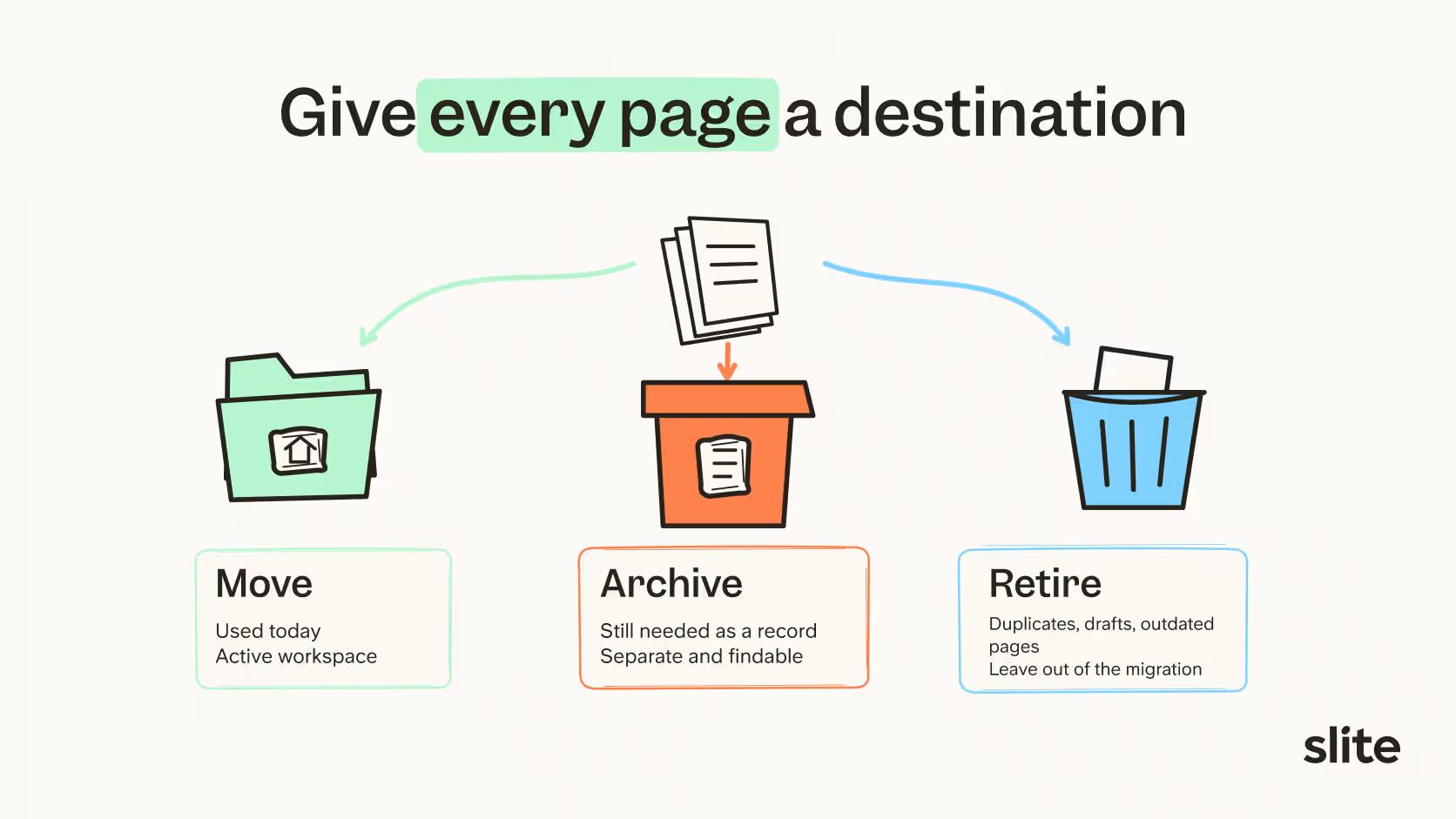
You can do this sorting before or after the import. Both approaches work but carry their own risks.
| Approach | How it works | Choose it when | Risk |
|---|---|---|---|
| Clean first, import second | Owners select documents in Confluence. You import only the selection. | Owners know their space and have time before the deadline. | Review runs long. Forgotten but needed documents get left behind. |
| Import first, clean second | You import everything into a contained area. Owners sort it in the new tool. | The deadline is close, or nobody knows the workspace well enough to select in advance. | Old material lands next to active content. If you do not keep them separate, people cannot tell what to trust. |
You also need to decide whether everyone moves at once or in waves. A single migration gives the company one clear switch date, but every unresolved problem reaches the whole company together. Moving team by team gives you time to fix problems between waves, although shared documents and cross-team work need more planning.
While owners sort, ask them to flag two more things:
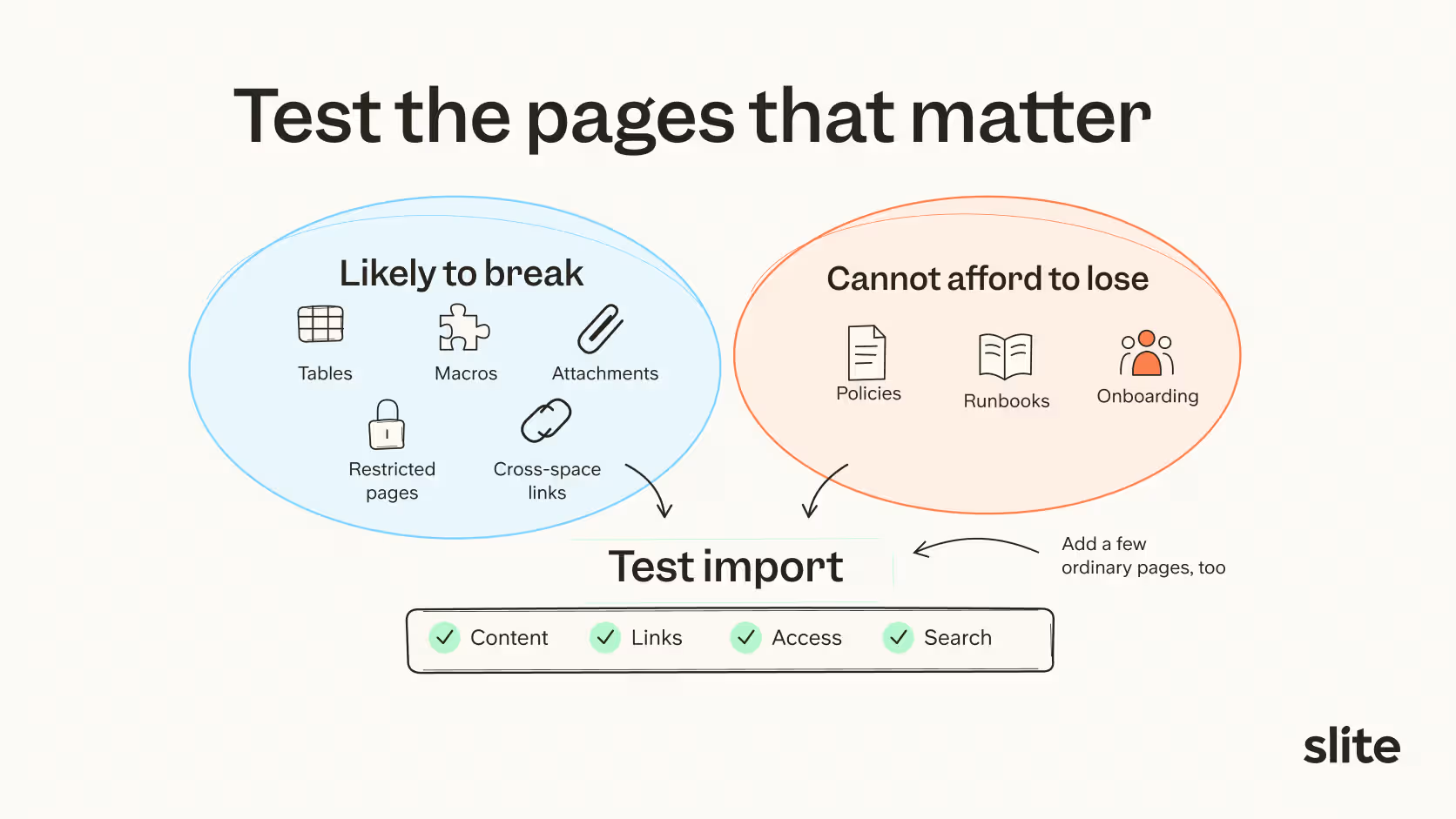
- Pages that will be hard to move. These can include large tables, macros, heavy attachments, restricted pages, and links into other spaces. Because they depend on structures that may not transfer cleanly, include them in the test import.
- Pages people cannot afford to lose. These docs are policies, runbooks, onboarding guides. They should be checked and verified first.
A quick way to start is the last updated date. Anything untouched for over a year is a candidate to archive or retire.
And by the end of it, you'll have a clear plan for each space covering its decision, owner, and pages that need testing.
Test the import before you trust it
A page can exist in the export and still arrive broken, incomplete, or inaccessible, which is why we recommend testing a sample before the full import. Test the flagged pages and a few ordinary ones using the same route planned for the full import.
Two things to check before you export:
- The format. Confluence Cloud offers several export formats, and the right one depends on your destination. Check what the new tool accepts before you start.
- Who exports. Before exporting, confirm which pages the exporting account can access and what the selected export type includes. If the migration needs restricted content, ask an administrator to verify the export scope before you import it.
Then check the sample against this list. Each row is a question, because the answer depends on your content and your destination.
| What to check | The question to answer |
|---|---|
| Formatting | Do tables, images, checkboxes, and text formatting look right? |
| Macros and embeds | Do Jira macros, diagrams, and embedded apps survive, or do they need rebuilding? |
| Attachments | Do files open in the new tool? Confluence Cloud attachments may need a separate download. |
| Links | Do links between pages, across spaces, and to attachments still resolve? |
| Comments and blog posts | HTML exports from Confluence Cloud omit these. Decide if you need them preserved elsewhere. |
| People | Are authors and @mentions kept as users, or converted to plain text? |
| Access | Can the right people open restricted pages, and only them? |
| Large pages | Do very long or oddly structured pages import in full? |
| Search | Can an ordinary user find a known page by searching for it? |
Once done, decide how you will handle edits made after the test export. Before each team moves, either run a supported final import or ask an owner to reconcile the pages changed since the test. Then make the migrated space read-only so the two copies cannot keep changing independently.
Move the way people work
After the content checks pass, the remaining risk is adoption. Teams return to Confluence out of habit, so make the new tool easier to use and the old one harder to edit.
Here's some ways to do that:
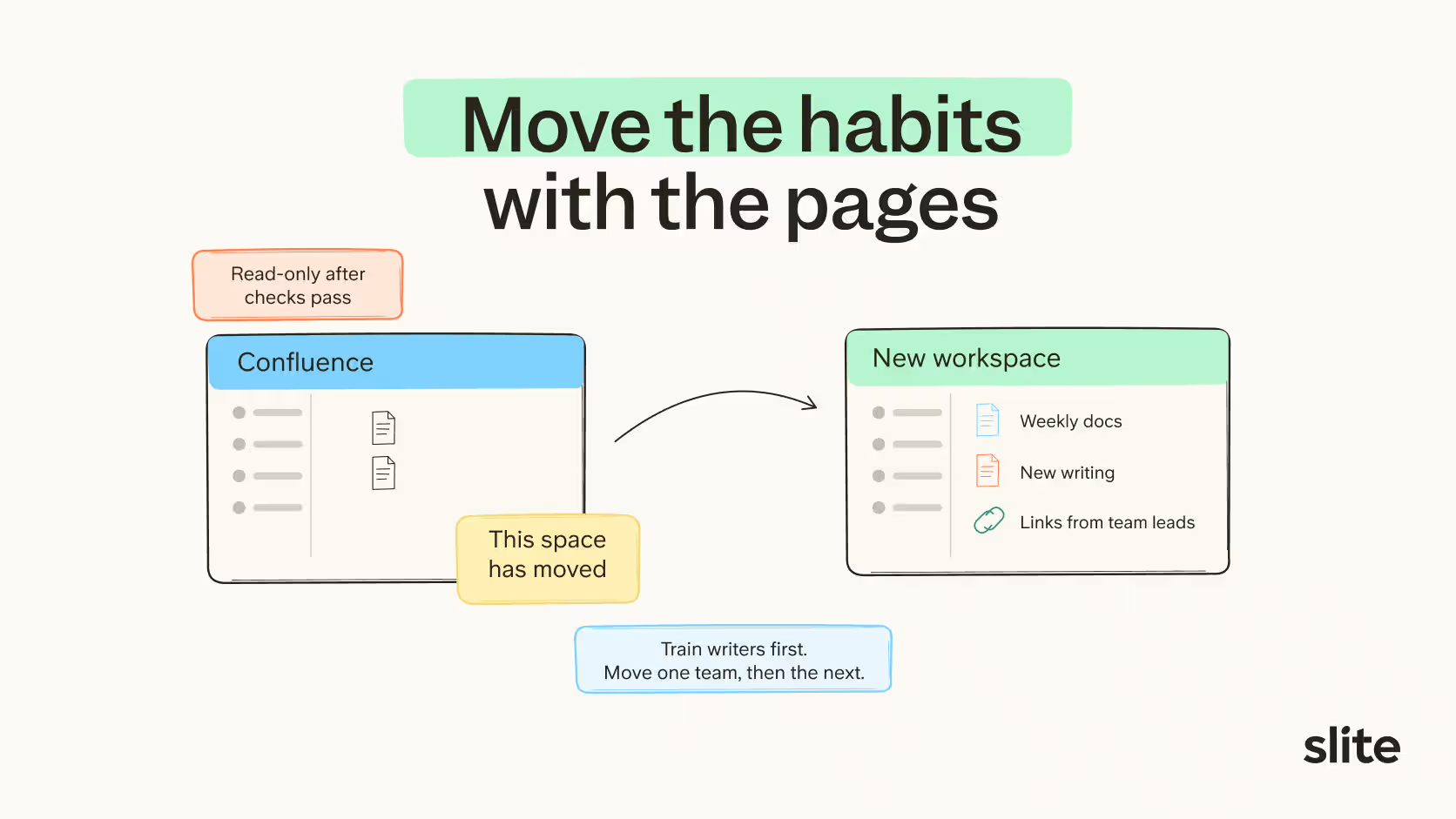
- Lock editing in Confluence, one space at a time. Set Confluence spaces to read-only as soon as its content passes the checks. People can still read, but any new writing has to happen in the new tool.
- Add a banner to each locked space. One line saying this space has moved, with a link to its new home. It answers the question before anyone asks it.
- Stop sharing Confluence links. Managers and team leads link to the new tool in meetings, Slack, and onboarding. Teams follow what leadership does, not what the announcement said.
- Move the documents people open every week first. Meeting notes, team rituals, onboarding guides, runbooks. If the daily-use content lives in the new tool, people go there without being told.
- Train writers before readers. Writers are few and set the example. Readers only need a clear link, and working search. Onboarding the writers accelerates the network effects for all writers.
We recommend starting with one team and fixing what blocks them before moving the next.
Next, let's look at how one company did this while moving two Confluence instances into Slite.
How one company moved 2 Confluence instances into Slite
One customer we worked with had their documentation spread across two Confluence instances and a few other tools, with many people paying for seats in both. They had already moved from Jira to Linear and wanted the same clean break for their knowledge base. So they picked Slite, with one goal: a single workspace for the whole company.
Their migration was unique because different Confluence instances without reliable inventory made a clean-first migration impractical, while a flat import would mix useful pages with old ones.
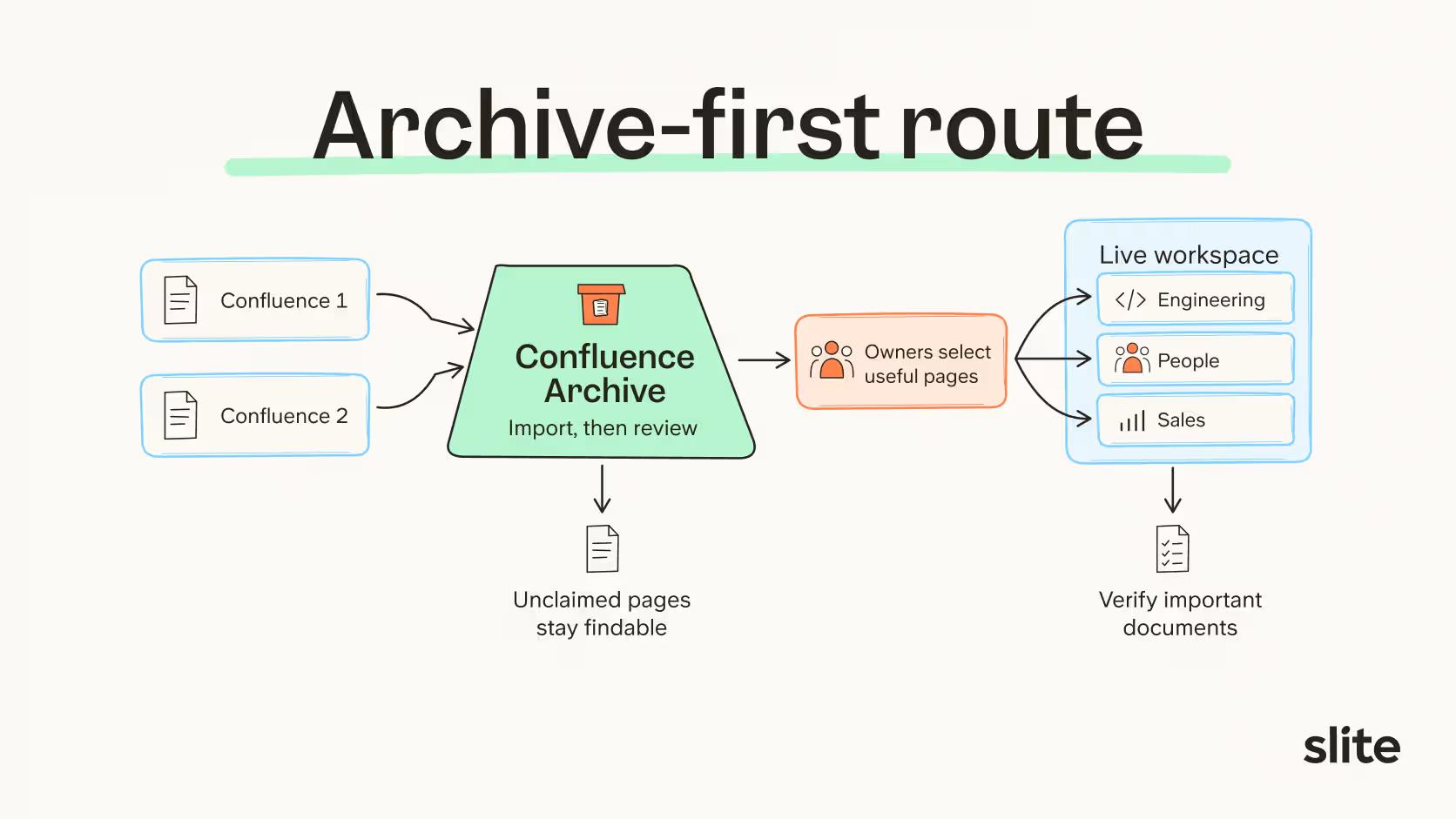
So they took an archive-first route. Here is how it went, with some help from our team.
They exported both instances as Confluence HTML
That is the format Slite's importer reads. A small sample went in first to check that pages rendered correctly and that links, tables, and attachments still worked.
They imported everything into one channel called Confluence Archive
This channel in Slite held a full copy of both old workspaces. People could search it when they needed an old page, but it was clearly not where day-to-day work happened.
They set up the live workspace alongside it
They created one channel per team, based on how the company works today, such as Engineering, People, and Sales. These channels started nearly empty on purpose. Nothing went in unless someone chose to put it there.
Each department reviewed its own material in the archive
Owners went through their Confluence archive pages and decided what to keep, what to archive, and what to let go, the same sorting described above.
Doing this after the import meant they could read each page in Slite instead of working from a spreadsheet.
They moved the useful documents into their team channels
Engineering docs went to Engineering and HR policies went to People. Whatever nobody claimed stayed in the archive, where it remained searchable but was never shown as current.
Owners verified the documents people depend on
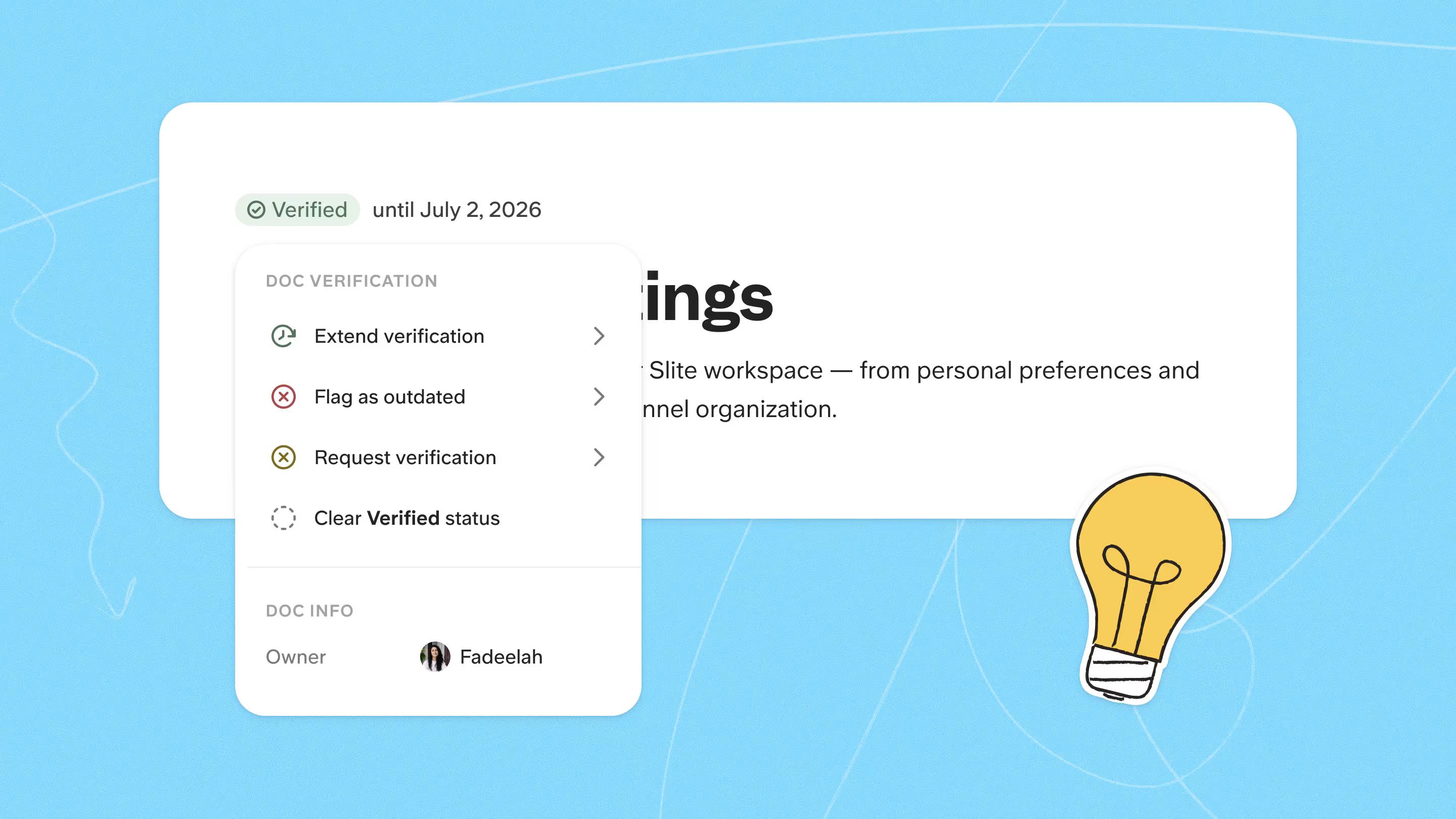
They used Slite's verification feature to mark important documents as verified, signalling to readers that someone had checked the information and stood behind it.
They locked Confluence last
Once the content and access checks passed, each team set its Confluence spaces to read-only and started writing in Slite.
In later follow-ups, the customer described the workspace as clean and searchable, and said people were happier with it than they had been with Confluence. Ultimately, the migration gave them a better place for company knowledge.
If you're already switching to Slite, read our Confluence import guide. And if you're an enterprise with 1,000s of documents and need assistance, book a demo with us and get a white-gloved migration.
When do you know your migration is complete?
A migration is complete when the new workspace can support daily work without depending on Confluence. The exact signals vary by company, so agree on the evidence before the migration begins instead of inventing a universal threshold at the end.
| Stage | Decision | Owner | Evidence required |
|---|---|---|---|
| Scope | What will move, remain archived, or be retired? | Migration lead | Approved list of spaces, exclusions, and retention requirements |
| Content | Did the required information arrive correctly? | Technical owner | Validated pages, attachments, links, and recorded exceptions |
| Access | Can the right people use the migrated content without gaining unintended access? | Workspace administrator | Tests from users with different roles and restrictions |
| Trust | Which documents can people rely on? | Department and content owners | Important documents reviewed, assigned, and verified |
| Working habits | Has daily work moved to the new tool? | Department leads | New documents and updates happen in the new workspace |
| Exceptions | Is anything important still unresolved? | Migration lead | Remaining issues have owners, deadlines, and an agreed workaround |
| Retirement | Can Confluence become read-only or be closed? | Operational, legal, and IT owners | Dependencies, retention needs, backup access, and renewal timing confirmed |
Once every team meets its agreed conditions, take a final export and confirm how long the old Confluence workspace must remain accessible.
Confluence can then become read-only for that period, with seats reduced or the subscription cancelled only after the relevant operational and legal owners confirm it is safe.
Conclusion
We hope this guide helped you plan your migration, or at least gave you a clearer view of what you are taking on.
If it goes well, you will know within a few months by many positive signals such as: people writing more than they did in Confluence, answers come faster, and documentation stops being one person's job. If none of that happens, do not stop at the migration.
And if Slite is the one you are looking at, or you want to talk it through first, book a demo with us.
Frequently asked questions
How long does a Confluence migration take?
It depends on the route, how much content you keep, and whether teams move at once or in waves. A Data Center to Cloud move with Atlassian's tooling is mostly technical work. A move to another product adds review and adoption time, so estimate those separately from the transfer itself.
What gets lost in a Confluence export?
An HTML export from Confluence Cloud does not include page comments or blog posts, so save those elsewhere if you need them. Macros and embedded apps usually need rebuilding in the new tool. Check what your destination keeps before you rely on it.
Which pages should you test before the full import?
The ones most likely to break and the ones you cannot afford to lose: large tables, macros, heavy attachments, restricted pages, cross-space links, policies, runbooks, and onboarding guides. Add a few ordinary pages so you know what a normal result looks like.
When can you cancel Confluence?
When every team is working in the new workspace, every open issue has an owner, and legal, IT, and operational owners have confirmed retention and backup needs. Keep Confluence read-only for that retention period, then reduce seats or cancel.